
Your AI-Powered Workflow Assistant
Introducing Your AI-Powered Workflow Assistant
Ever looked at a complex automation and felt like you needed a translator just to understand it? Or maybe you've stared at a blank workflow canvas, unsure where to even begin.
You're not alone. Building and deciphering automations has traditionally required a steep learning curve, costing teams valuable time.
That's exactly why the Workflow AI Assistant inside Gohighlevel is a timesaver. Think of it as your on-demand automation expert.
It turns what used to be a daunting technical task into a guided conversation. This feature is all about saving you significant time and reducing frustration.
Whether you're auditing old automations or crafting new ones, you now have a powerful ally embedded in your workflow builder. Ready to put it to work?
Let's walk through exactly how to find it and get started.
How to Access and Activate the AI Assistant
Now that you know what this AI assistant can do for you, let's get it open and talking. The good news is, it's built right where you need it, so there's no complicated setup or new tab to manage.
You'll start by heading to the workflows section of the platform. Just click on 'Automations' in the main menu, then select 'Workflows' at the top of the page.
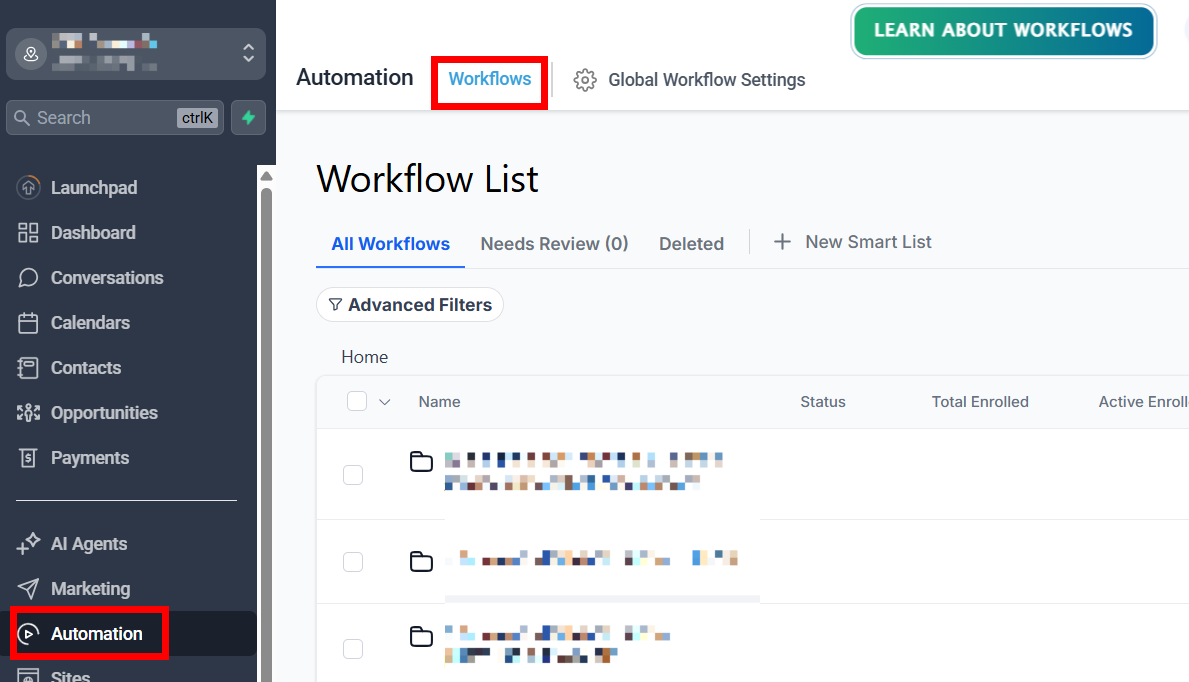
From here, you have two paths. You can either create a brand new workflow by clicking 'Create New Workflow', or you can open an existing one you want to analyze or edit.
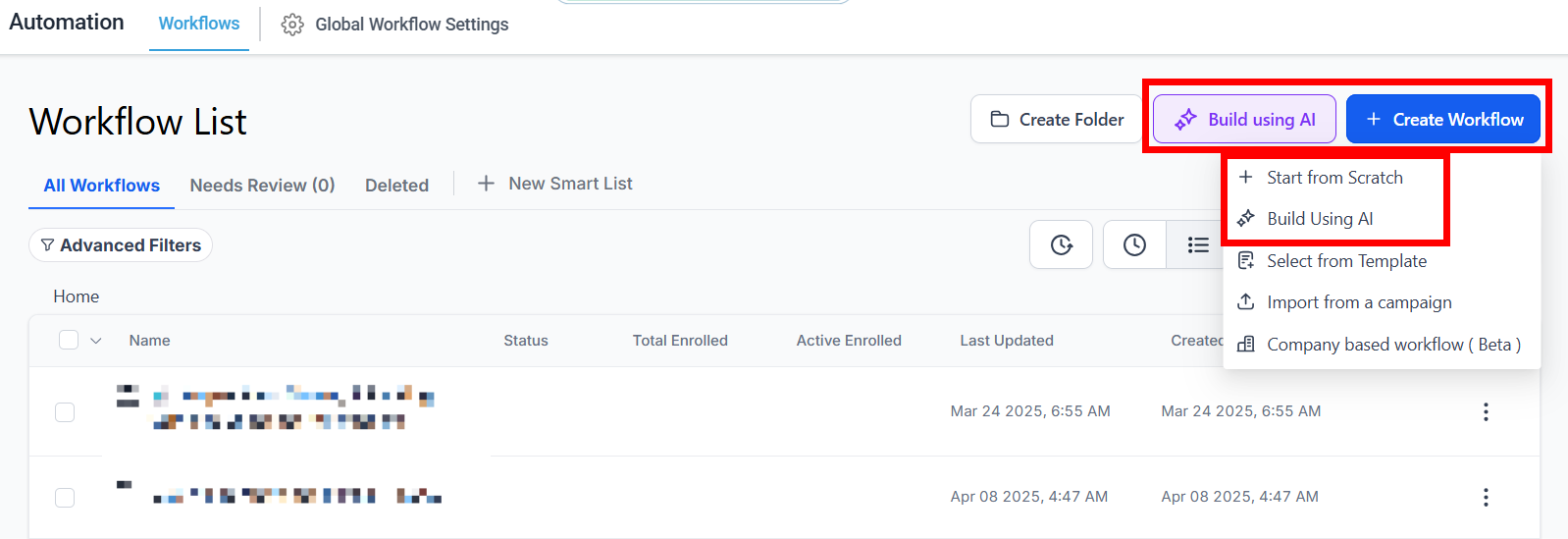
The AI assistant is available in both contexts. Once your workflow canvas is open, look to the bottom left corner of your screen.
You'll spot a distinctive purple chat bubble icon. Go ahead and click it.
That single click activates your assistant. A chat window will pop up, introducing itself as your Workflow AI.
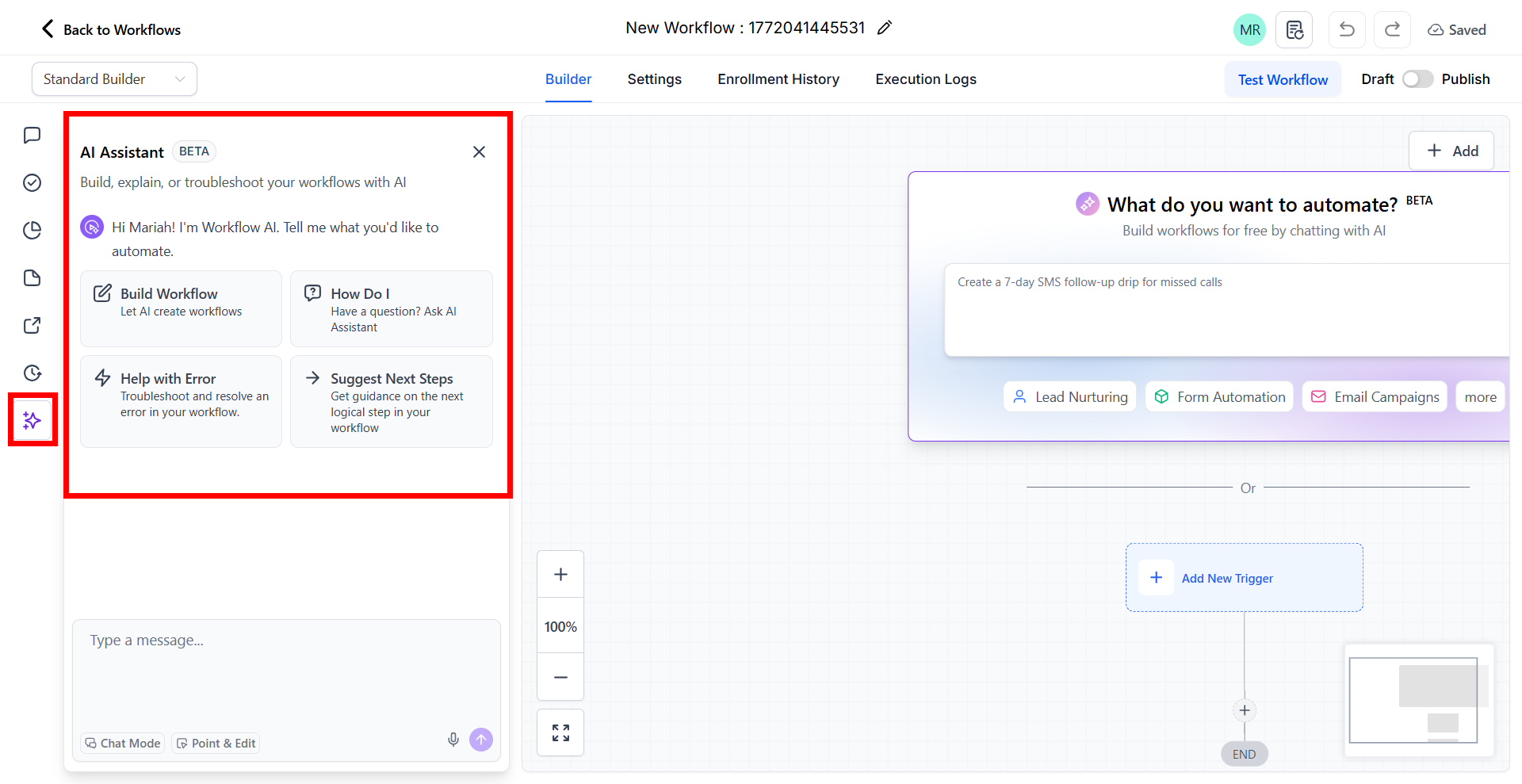
When you open the builder you can find the Workflow AI on the bottom left corner of the builder. After clicking the AI icon, the chat box will open.
There are 3 ways you can chat with Workflow AI:
1-Analyze Workflow: Click the "Describe this Workflow" button to have Workflow AI analyze your workflow.
2-Help Building: Click the "Assist with Building" button to get suggestions for your workflow from Workflow AI.
3-Standard Chat: Start typing in the text box and ask it anything.
The interface is designed to be intuitive, asking you clear questions to guide your next move. Whether you're looking for clarity or creation, the first step is always that purple bubble.
In the next sections, we'll explore exactly how to use each of its powerful functions, starting with having it explain even the most complex automations in plain English.
Option 1: Getting an Instant Breakdown of Any Existing Workflow
Once you've opened a workflow and started a chat with the AI, you'll see your first major choice. The assistant offers two distinct paths, and the first one is perfect for getting up to speed quickly.
Select "Describe This Workflow." In seconds, the AI scans the entire automation and delivers a plain-English summary.
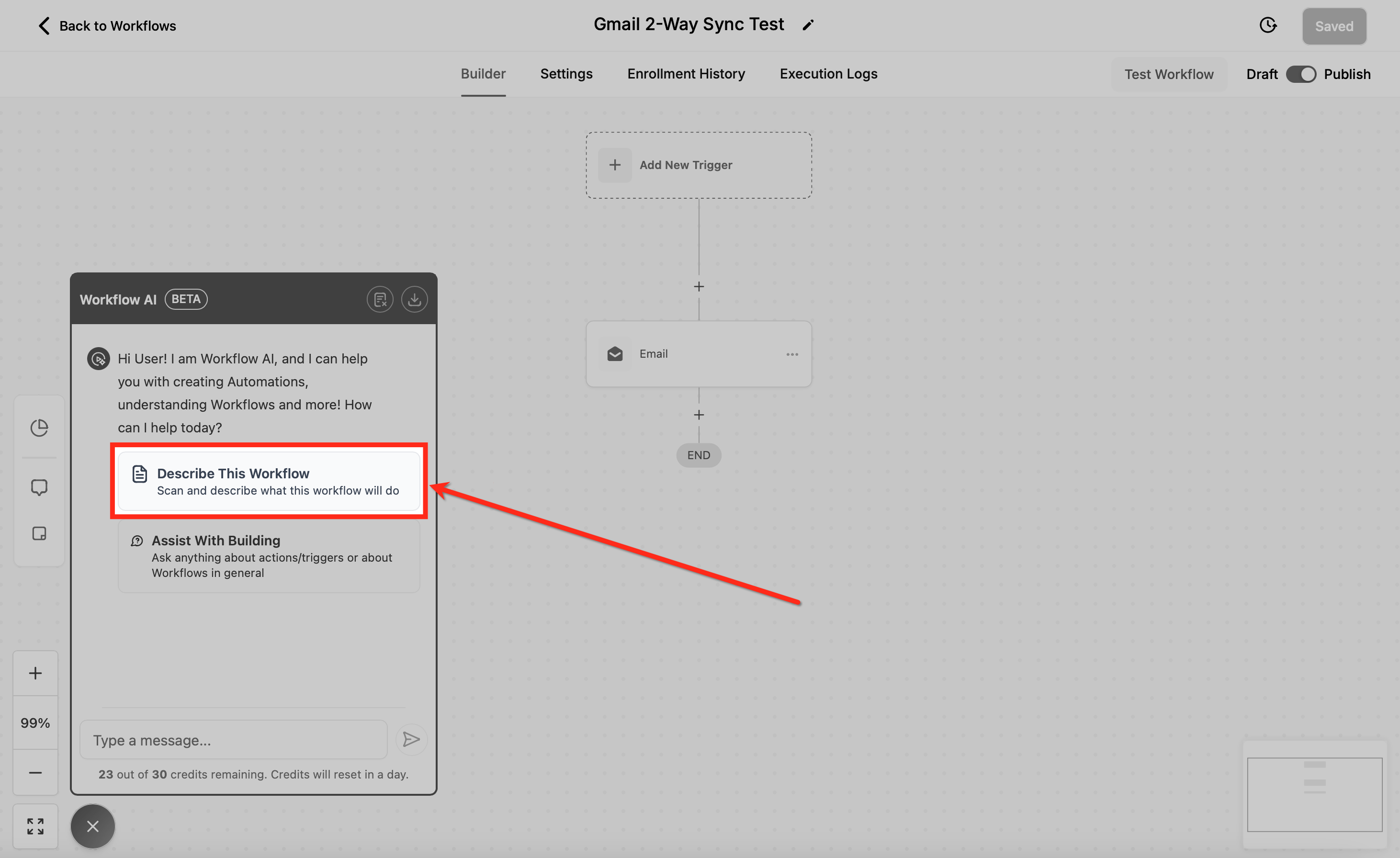
It's like having a colleague walk you through the logic. The breakdown is surprisingly thorough.
It will tell you the workflow's core purpose, its current status (like draft or published), and even the version number. It also highlights crucial settings you might otherwise miss.
When you have the summary, you're not stuck just looking at it. For documentation or sharing, click the "Export" button.
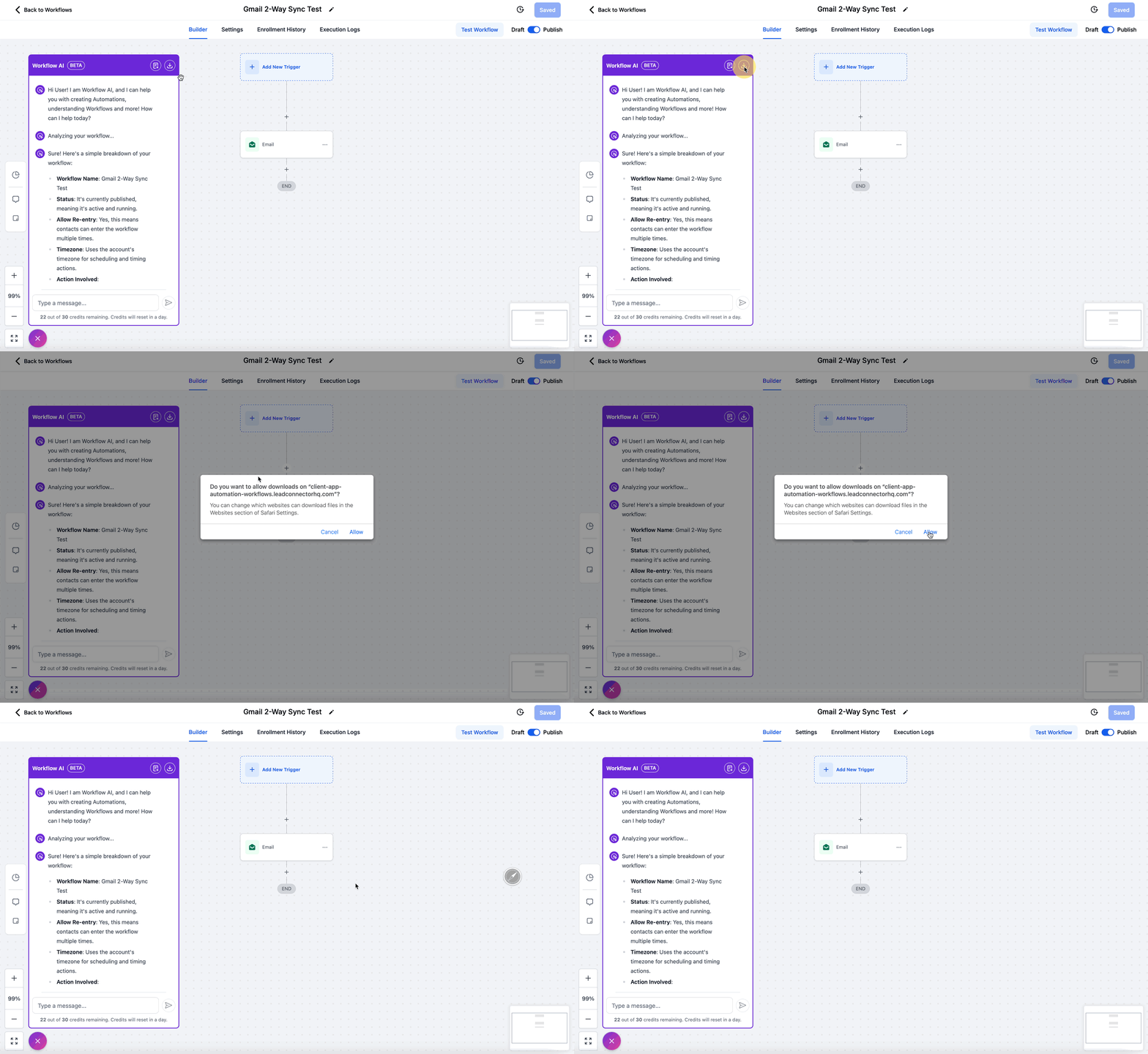
This downloads the entire AI explanation as a tidy text file, ready for your notes or reports. With a clear understanding of any existing automation, you're perfectly positioned to edit it confidently.
Or, you might decide it's better to start fresh. That's where the AI's second, even more powerful option comes in.
Option 2: Building a New Workflow with Step-by-Step Guidance
If you are having trouble building your workflow, or you just want help from AI to build the best possible workflow for your situation, you can use Workflow AI to get this done fast and easy!
Step 1: Ask Workflow AI for Help
To start building your workflow with AI all you need to do is start typing in the chat box and ask for help building your workflow.
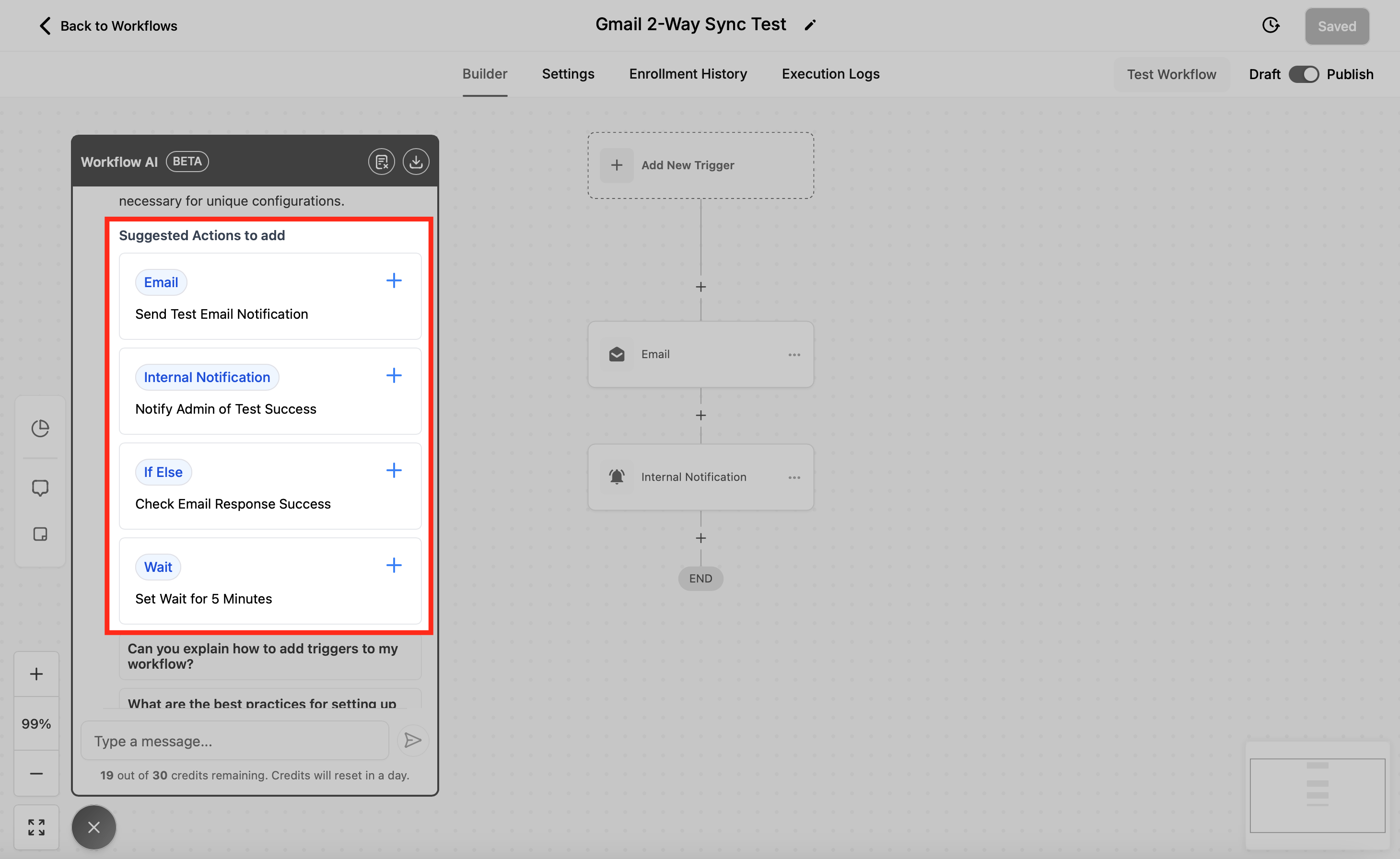
Just mention the use case you want to achieve and Workflow AI will share detailed explanations of the actions and triggers that are best to add for your use case, and give you step-by-step instructions to follow to configure the desired workflow!
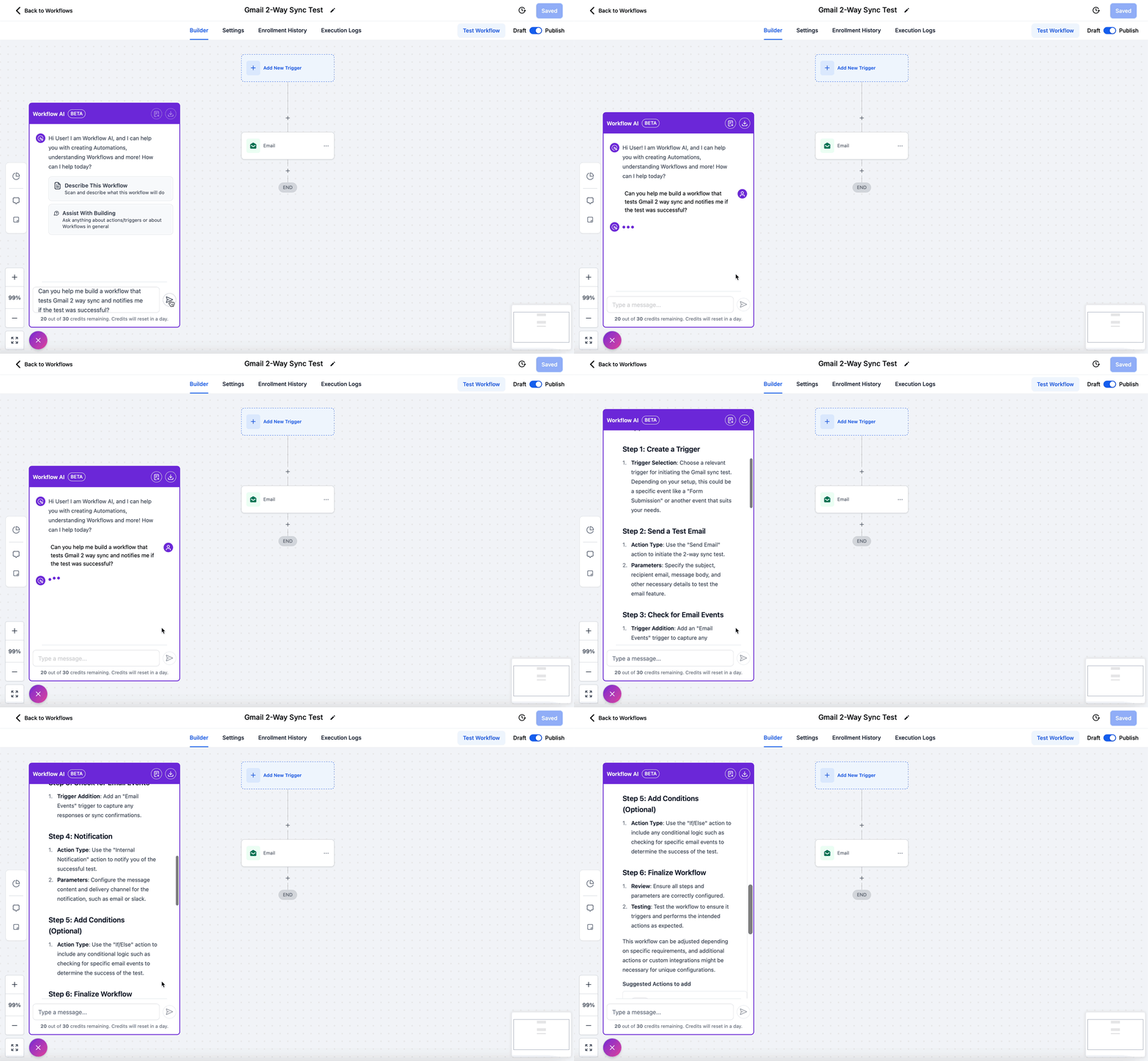
Step 2: Choose from Provided Suggestions
Once you start receiving suggestions from Workflow AI, you'll be able to pick the best option from the suggestions provided.
Step 3: Add Trigger or Action to Workflow
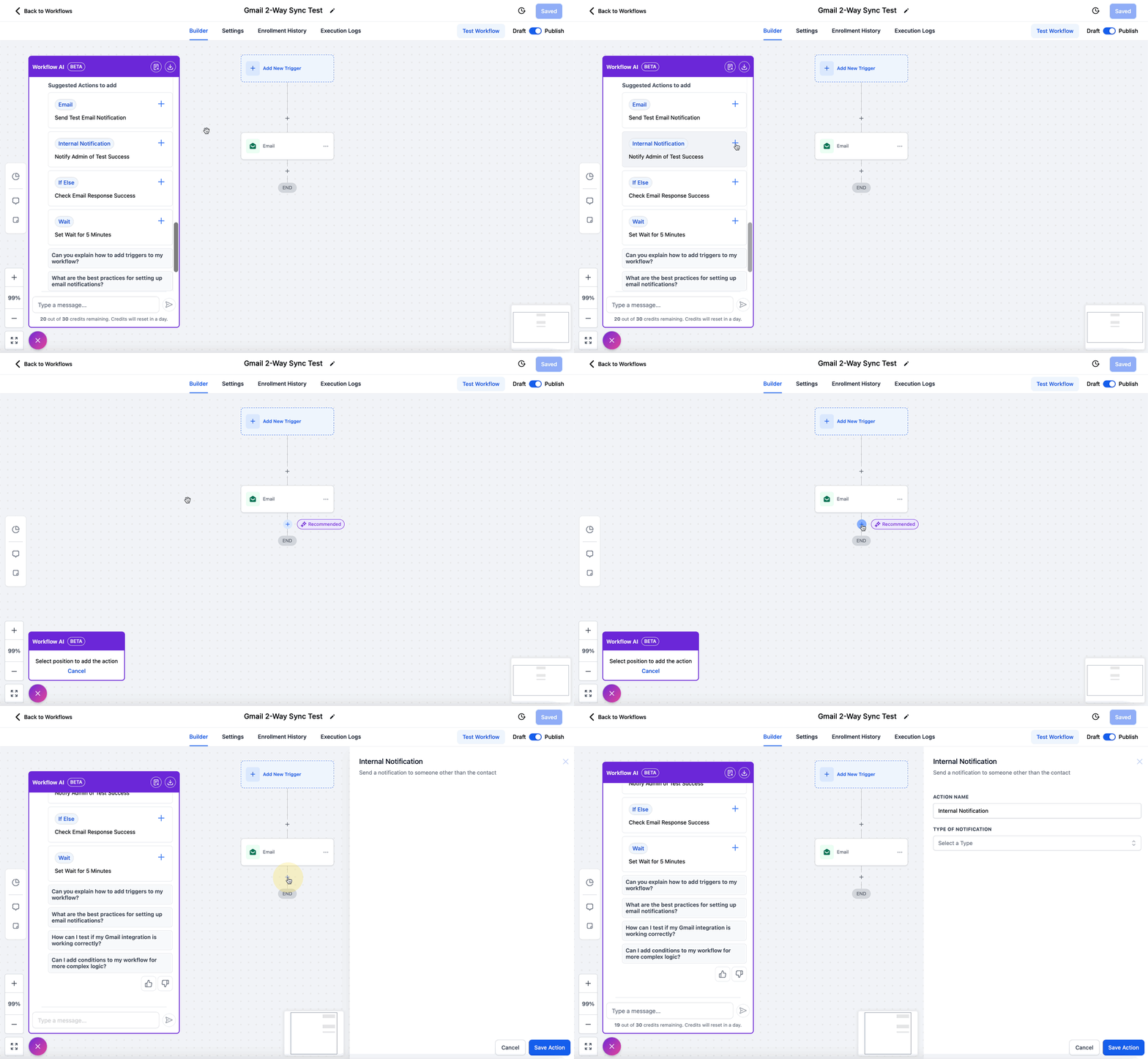
To add the suggested action or trigger to your workflow, simply select the place where you want it to be added. The action will be added and the sidebar will be opened for configuring that specific action.
Best Practices and Refining Your AI Assistant
Now that you've seen the AI assistant in action, let's talk about how to work with it effectively. Think of it as a brilliant but junior team member.
It provides excellent drafts and suggestions, but your expertise is what turns those drafts into polished, reliable automations. Your feedback directly shapes its future suggestions.
After any response from the AI, you'll see thumbs-up and thumbs-down icons. Use them.
If a suggestion is spot-on, give it a thumbs-up. If it's off the mark or unhelpful, a thumbs-down helps it learn what not to do next time.
This continuous training makes your assistant smarter and more tailored to your specific needs. However, never skip the final, human-led review.
The AI builds a plan, but you are the one who must implement it. Always double-check every detail it suggests.
Verify trigger settings, proofread message content, confirm field mappings, and test all conditional logic. Before you even think about publishing, run a thorough test.
Use a test contact to trigger the workflow and follow it through every single step. Watch for timing, check that notifications arrive, and ensure all data flows correctly.
Only when you've validated every component should you activate the workflow. This combination of collaborative AI guidance and meticulous human oversight is the true best practice.
It leverages the speed of automation while guaranteeing the accuracy and reliability your business depends on.
Interested in adding GoHighLevel to your arsenal?
